Tablet for kids with parental controls: what works and what does not
EduSoulX guide for parents. Updated: 11 October 2026.
A tablet for kids with parental controls can be set up in two ways. One is a normal tablet with a parental control app, which limits what the child does. The other is a tablet locked for study, where the distracting apps are not there at all. The right choice depends on what your child needs the tablet for.
What parental control apps can do
| Control | Google Family Link (Android) | Apple Screen Time (iPad) |
|---|---|---|
| Time limits | Screen time limits, and a limit for each app | Time allowances for groups of apps |
| Apps | Approve new apps, block apps | Ask to Buy: the child asks before a download or purchase |
| Content | Block unsuitable websites | Content and privacy restrictions |
Family Link also has downtime and school time settings, and it shows where the child's device is. It works on certain Android and Chrome devices, so check your tablet first.
Sources: Google Family Link and Apple Support.
Where parental controls fall short
- The apps are still on the tablet. YouTube, games and the browser are limited, not removed. Every limit can become a daily request for five more minutes.
- They need regular work from you. You approve apps, change limits and check what was used.
- They control time, not study. An app can stop YouTube after one hour. It cannot tell you if your child studied the chapter.
- They depend on a passcode. The controls work only while the child does not know it.
The other way: a tablet locked for study
The EduSoulX tablet is an educational AI tablet, made in India. It does not limit the distracting apps. It leaves them out.
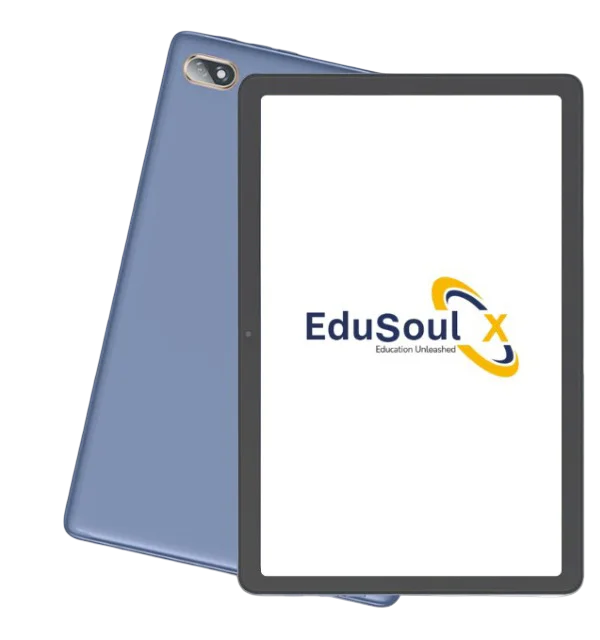
| On the EduSoulX tablet | |
|---|---|
| Blocked | Social media and entertainment apps, games, open internet browsing |
| Also blocked | Installing other apps, changing the system settings |
| Open for study | Study material, books and videos, Munja AI for doubts and practice, exams and homework, live classes |
The tablet has a parental lock and unlock. When the learning period is over, we help you unlock it for other use.
Which one should you choose
| Your need | Better choice |
|---|---|
| A young child who watches cartoons and plays games within limits | Normal tablet with parental controls |
| One tablet shared by the family | Normal tablet with parental controls |
| A school or coaching class student who needs to focus on study | Locked study tablet |
| A school that gives the same device to every student | Locked study tablet |
If you choose parental controls: setup checklist
- Create a child account. Do not give the child your own account.
- Set a daily time limit and a downtime for the night.
- Turn on approval for new apps.
- Keep the passcode to yourself.
- Review the limits with your child once a month.
Frequently asked questions
Short answers about tablets and parental controls.
Which tablet is best for kids with parental controls?
An iPad has Screen Time built in, and many Android tablets work with Google Family Link. Check Google's list of supported devices before you buy an Android tablet.
Can a child remove parental controls?
The controls are protected by the parent's account or passcode. They stay effective only while the child does not know it.
Is a locked study tablet better than parental controls?
For study, yes, because the distracting apps are not on the tablet. For games and videos within limits, a normal tablet with parental controls is the right choice.
See the EduSoulX tablet working
Book a free demo for your school, your coaching class or your child.
Book a Free Demo See the EduSoulX tablet Ask on WhatsApp